

Email Integration
Lendflow Email Integration enables a fully white labeled experience for your customers. By following the steps below, all emails generated from the Lendflow portal and sent by our funding team will be customized and branded to your organization.- Go to app.lendflow.com.
- Select your profile in the lower-left corner.
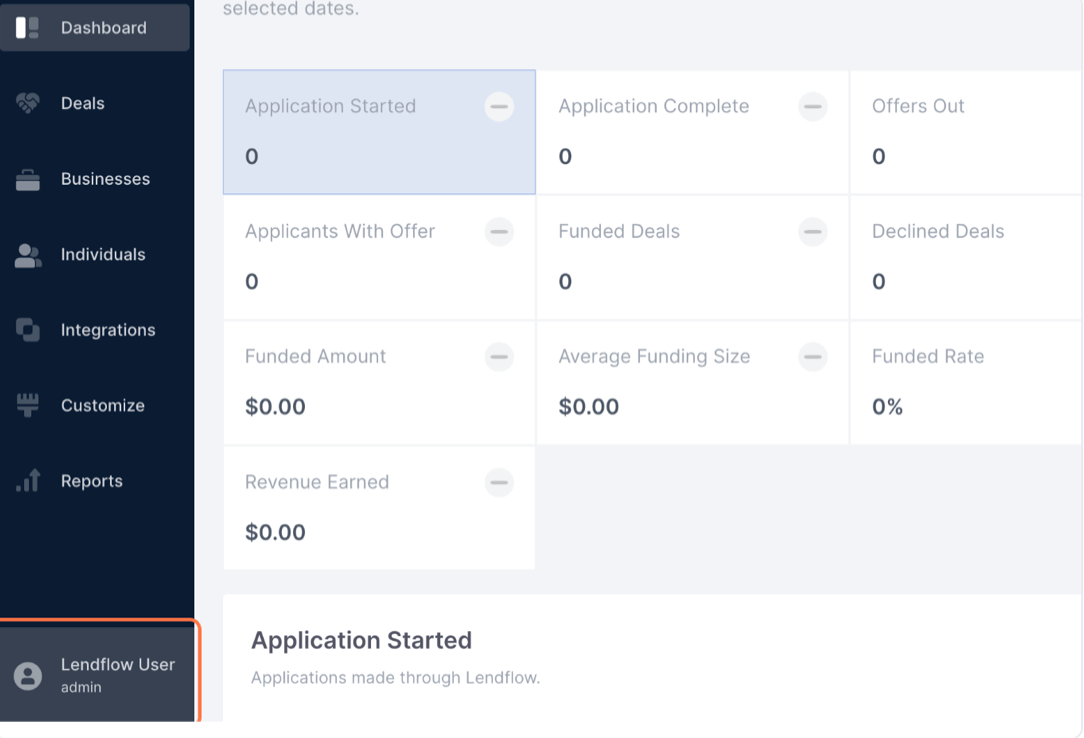
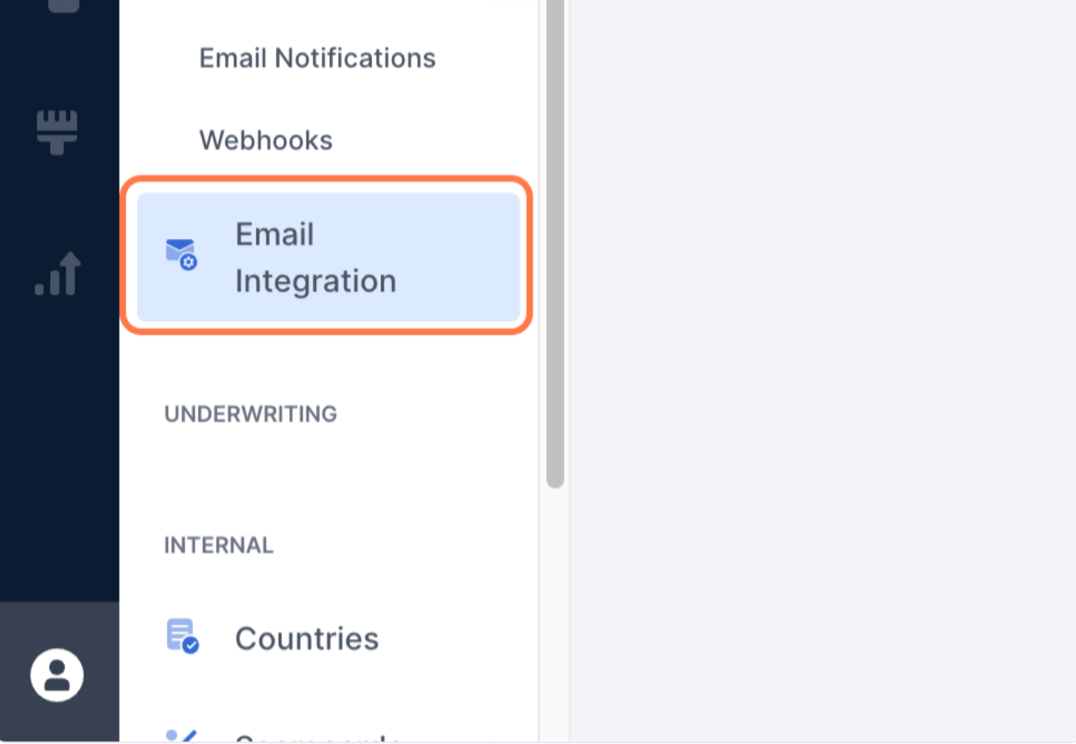
- Under Account, select Email Integration.
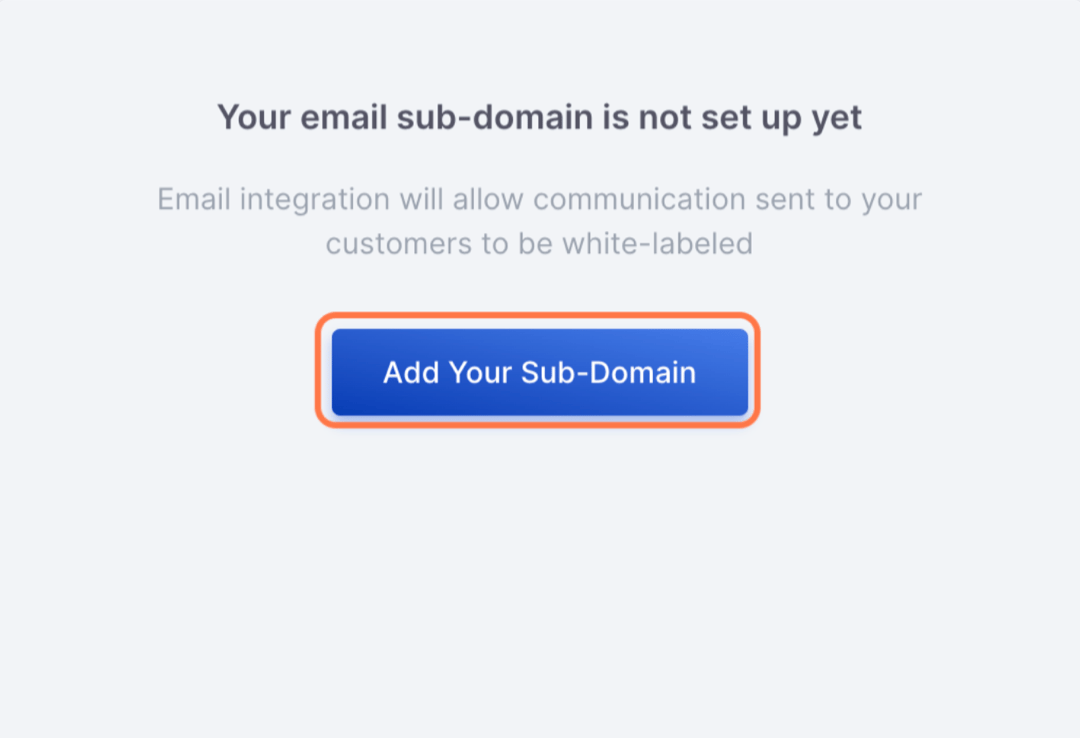
- Select the + button for Add a Sub-Domain.
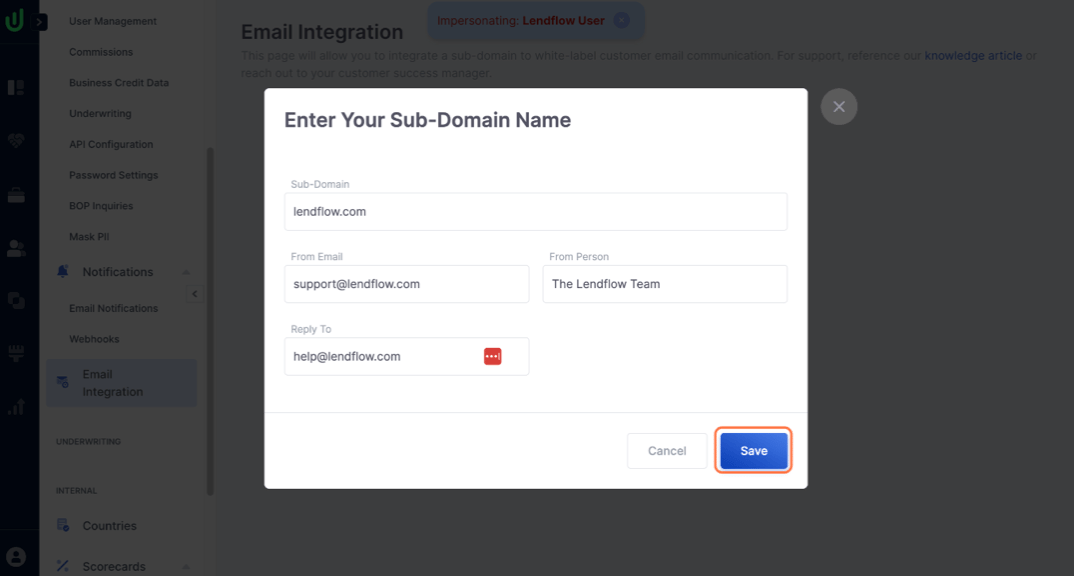
- Complete the available fields, then select Save.
- Confirm that the new subdomain appears on the Email Integration page.
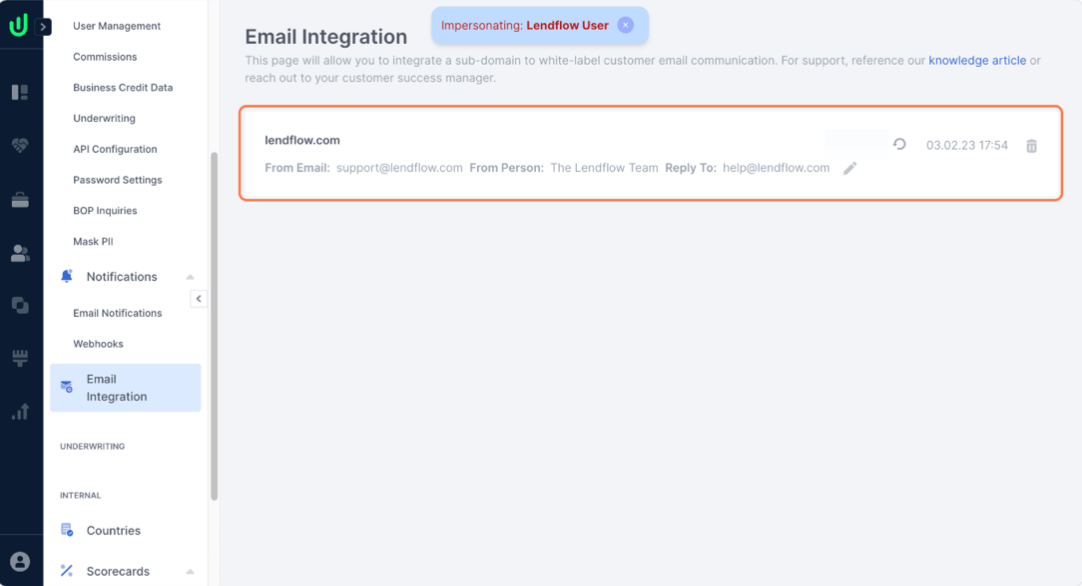
- Contact your Lendflow Customer Success representative for the TXT and MX records that must be added to your Domain Name System (DNS) provider.
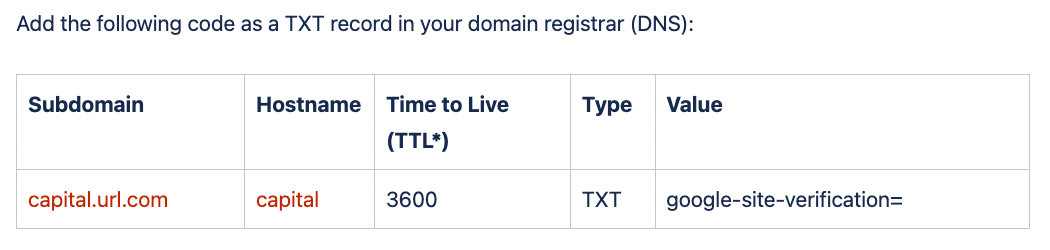
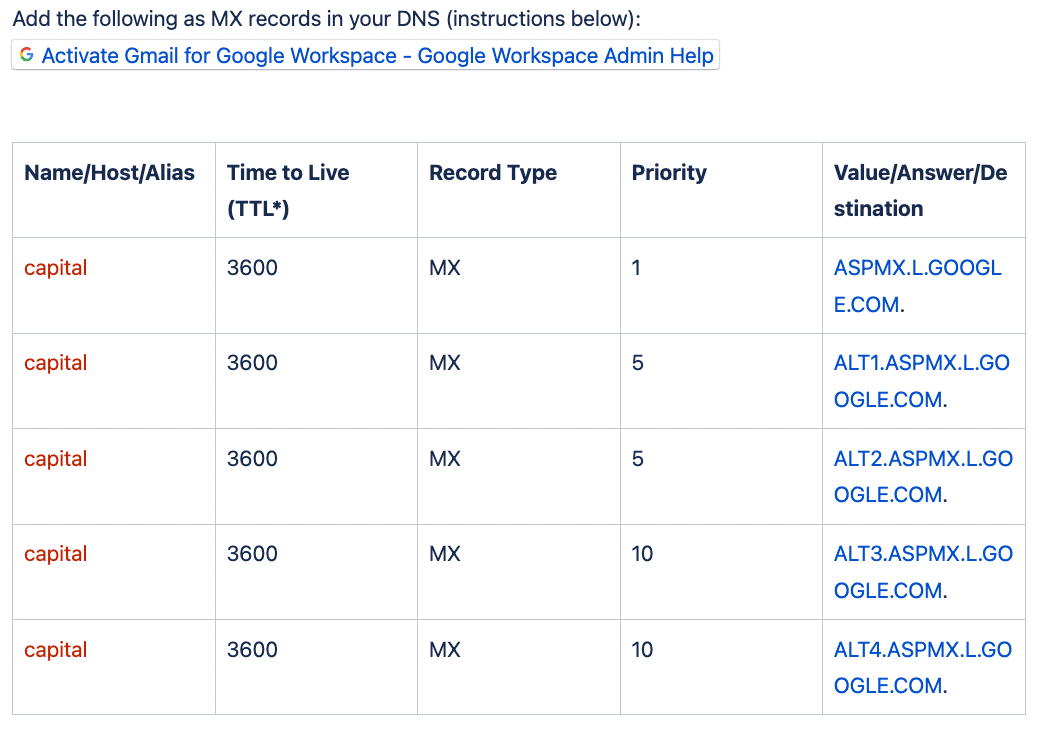
- After adding the TXT and MX records, add the required CNAME records. Your Lendflow Customer Success representative can provide these records, or you can select the subdomain on the Email Integration page to view them.
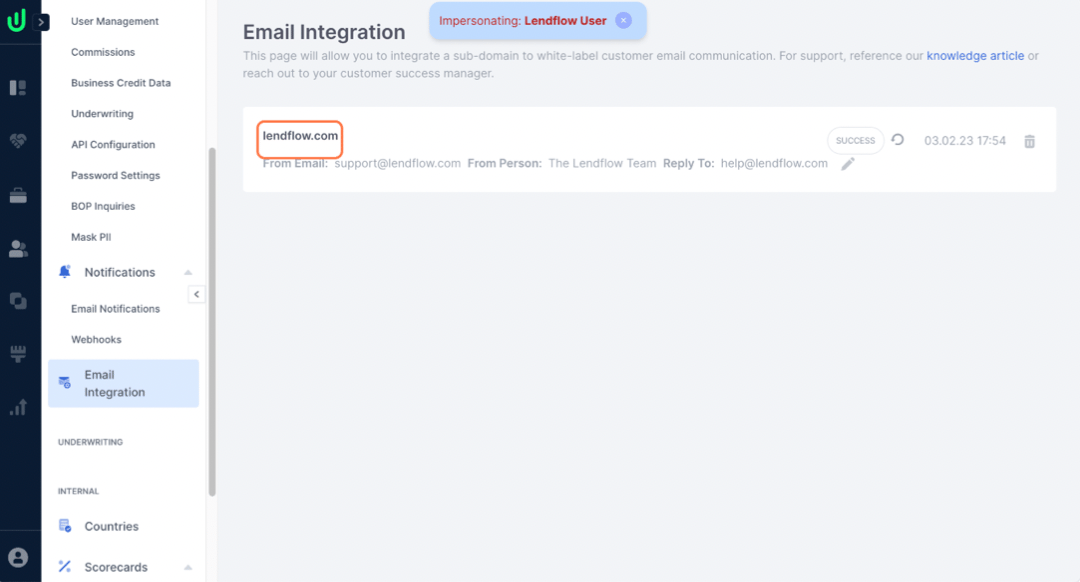
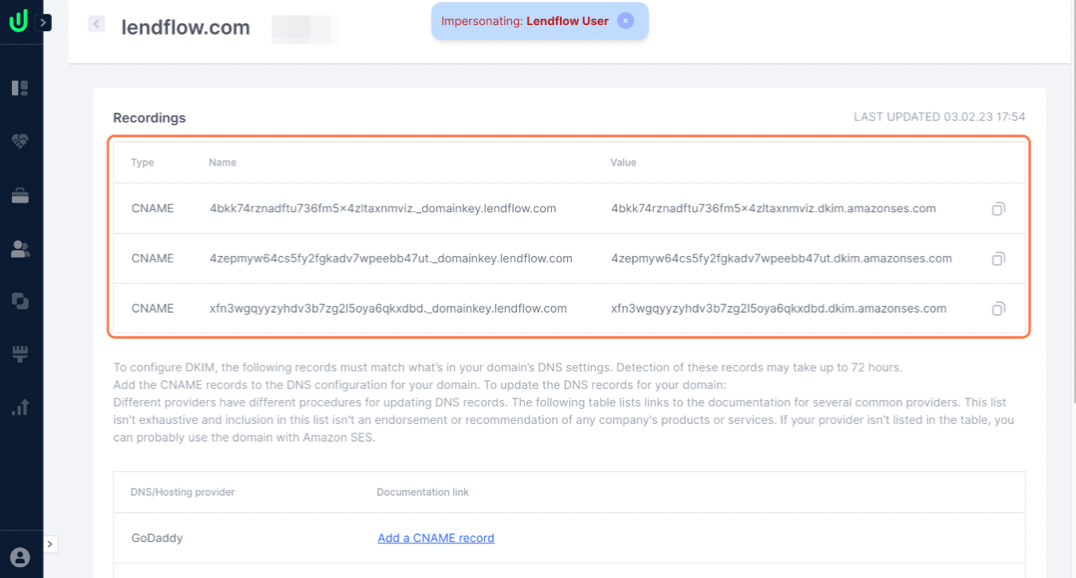
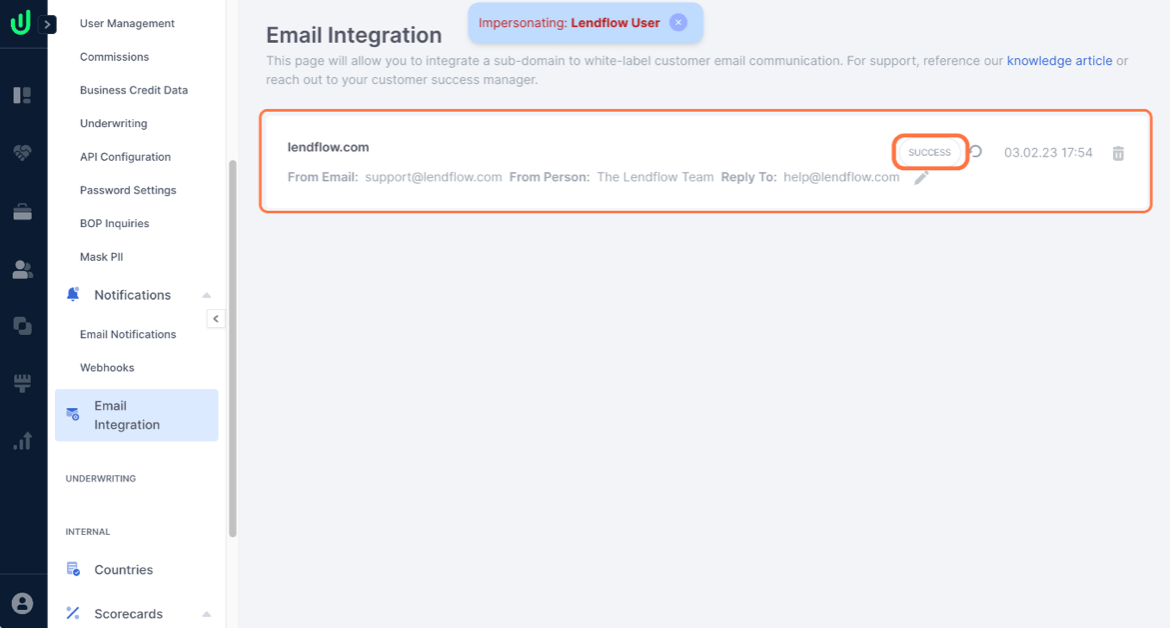
- After your DNS provider verifies the CNAME records, confirm that the Email Integration page displays Success. The Lendflow team can also confirm that the integration is active.
Authentication may take up to 72 hours. The Email Integration page displays the current status and the date and time of the latest check.
FAQ
Where can I find Email Integration?
Where can I find Email Integration?
Select your profile in the lower-left corner of the Lendflow Dashboard, then select Email Integration under Account.
Which DNS records do I need to add?
Which DNS records do I need to add?
The setup uses TXT, MX, and CNAME records. Contact your Lendflow Customer Success representative for the records and instructions specific to your subdomain.
Where can I find the CNAME records?
Where can I find the CNAME records?
Select the subdomain on the Email Integration page to view its CNAME records. Your Lendflow Customer Success representative can also provide them.
How long can authentication take?
How long can authentication take?
Authentication may take up to 72 hours. Review the status and latest check time on the Email Integration page.