> ## Documentation Index
> Fetch the complete documentation index at: https://docs.lendflow.com/llms.txt
> Use this file to discover all available pages before exploring further.
# Command Bar
## Command Bar
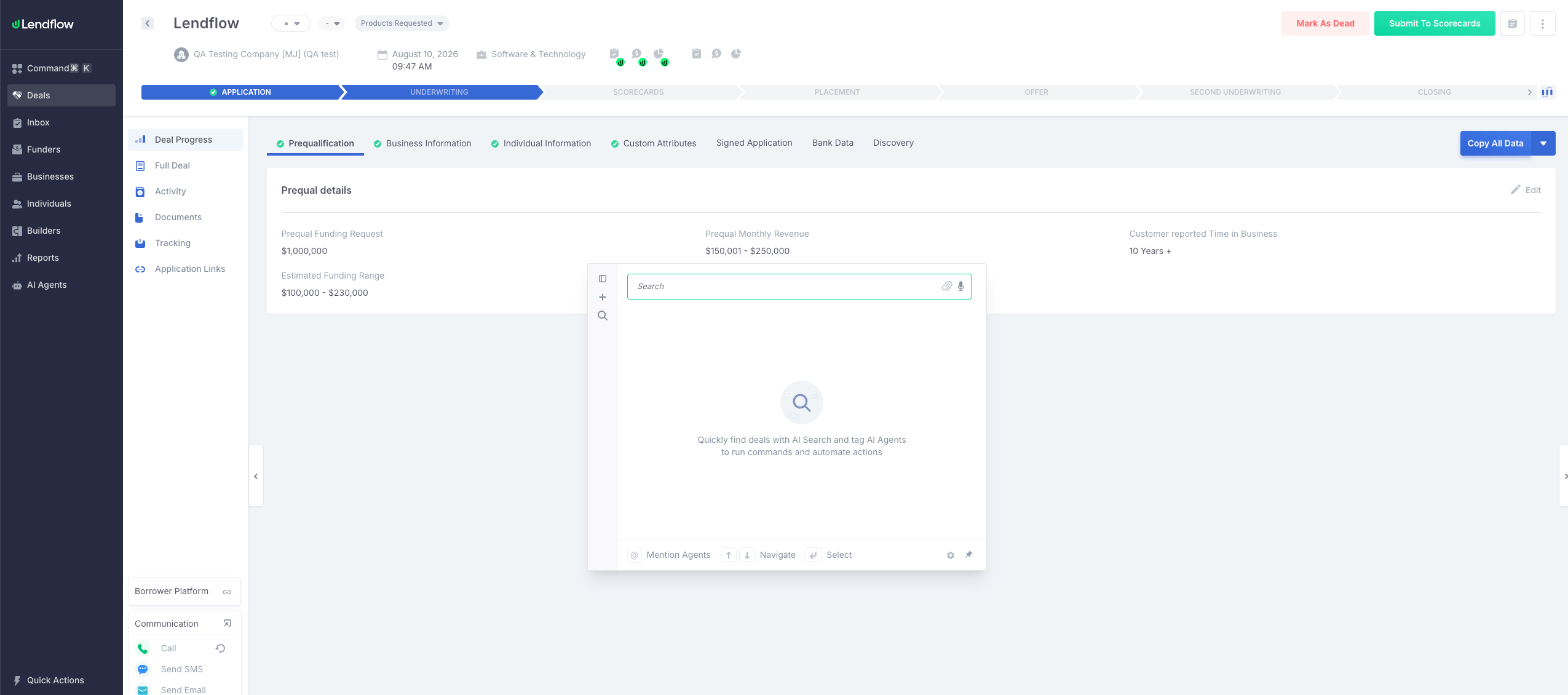
The Command Bar gives you one place to find deals and work with AI agents without leaving your current screen.
## Quick start
Remember these three commands:
* Start typing to search for a deal.
* Type `@` to choose an agent.
* After choosing an agent, type `/` to add a deal to your request.
## Open the Command Bar
* **Mac:** Press **Command + K**
* **Windows:** Press **Ctrl + K**
* You can also select **Command** from the left navigation.
You can open the Command Bar from anywhere in Lendflow.
 ## Find and open a deal
Start typing a business name, contact detail, deal ID, or description. Results appear after a brief pause.
### Search examples
* `Acme Supplies`
* `owner@example.com`
* A full phone number, including the country code
* A complete deal ID
* `deals in Austin over 50k`
* `dead deals in Texas with offers over 100k`
For precise results, use a full email address, phone number, deal ID, or business name.
For broader searches, include details such as:
* Location
* Deal status
* Requested amount
* Revenue
* Product
* Offer amount
## Find and open a deal
Start typing a business name, contact detail, deal ID, or description. Results appear after a brief pause.
### Search examples
* `Acme Supplies`
* `owner@example.com`
* A full phone number, including the country code
* A complete deal ID
* `deals in Austin over 50k`
* `dead deals in Texas with offers over 100k`
For precise results, use a full email address, phone number, deal ID, or business name.
For broader searches, include details such as:
* Location
* Deal status
* Requested amount
* Revenue
* Product
* Offer amount
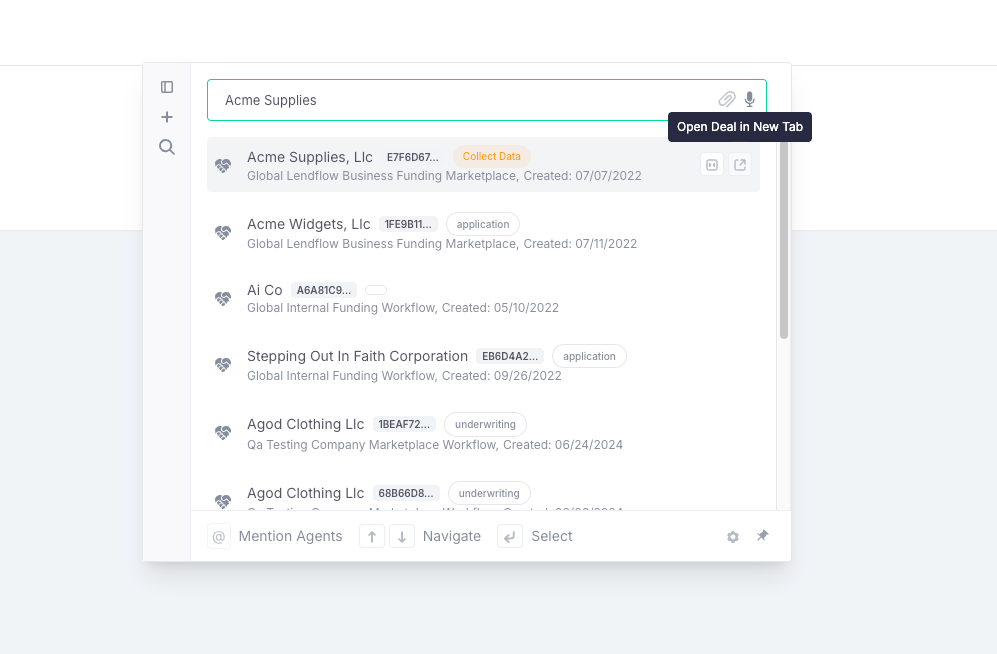 ### Work with search results
* Use **Up Arrow** and **Down Arrow** to highlight a result.
* Double-click a deal to open it in the same tab.
* Select **Open deal** to open it in the same tab.
* Select **Open deal in new tab** to keep your current page open.
* Press **Command/Ctrl + Enter** to open the highlighted deal in the same tab.
* Press **Shift + Command/Ctrl + Enter** to open it in a new tab.
* Press **Enter** to select the highlighted item. When building an agent request, selecting a deal adds it as context.
## Work with an AI agent
### Start a new agent session
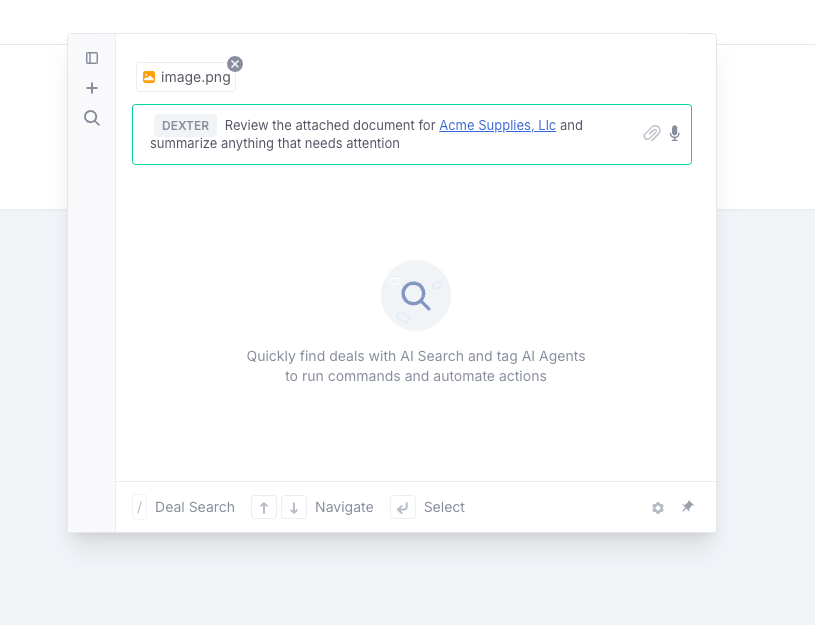
1. Type `@` and begin entering the agent's name.
2. Use the arrow keys to highlight an agent.
3. Press **Enter** to select the agent.
4. Write what you want the agent to do.
5. If the request relates to a deal, type `/`, search for the deal, and select it.
6. Attach any supporting files.
7. Press **Enter** to start the session.
Example:
> `@Dexter Review the attached documents for /Acme Supplies and summarize anything that needs attention.`
When you open the Command Bar from a deal page, that deal is added to the request automatically unless you select a different deal.
Agent capabilities vary. Some agents answer questions, while others can review documents or perform configured actions. Describe the outcome you need and review the agent's response before continuing.
### Work with search results
* Use **Up Arrow** and **Down Arrow** to highlight a result.
* Double-click a deal to open it in the same tab.
* Select **Open deal** to open it in the same tab.
* Select **Open deal in new tab** to keep your current page open.
* Press **Command/Ctrl + Enter** to open the highlighted deal in the same tab.
* Press **Shift + Command/Ctrl + Enter** to open it in a new tab.
* Press **Enter** to select the highlighted item. When building an agent request, selecting a deal adds it as context.
## Work with an AI agent
### Start a new agent session
1. Type `@` and begin entering the agent's name.
2. Use the arrow keys to highlight an agent.
3. Press **Enter** to select the agent.
4. Write what you want the agent to do.
5. If the request relates to a deal, type `/`, search for the deal, and select it.
6. Attach any supporting files.
7. Press **Enter** to start the session.
Example:
> `@Dexter Review the attached documents for /Acme Supplies and summarize anything that needs attention.`
When you open the Command Bar from a deal page, that deal is added to the request automatically unless you select a different deal.
Agent capabilities vary. Some agents answer questions, while others can review documents or perform configured actions. Describe the outcome you need and review the agent's response before continuing.
 ### Continue the conversation
After the session starts, use the chat to ask follow-up questions or provide more information.
* Press **Command/Ctrl + Enter** to send a message.
* You can also select **Send**.
* Type `/` to add another deal to a message.
* Use the paperclip or drag files onto the Command Bar to attach more documents.
Agent responses may take a moment because requests are processed in the background. Keep the session open or return to it from the session sidebar.
## Attach files
You can attach one or more files in either of these ways:
1. Select the **paperclip** and choose files from your computer.
2. Drag files anywhere onto the open Command Bar and drop them when the upload area appears.
Common supported formats include:
* PDF
* Word
* Excel
* PNG
* JPEG
* GIF
* HEIC
* P12
* PFX
* PEM
Each file can be up to **100 MB**.
You can remove an attachment before sending your request. If a file is rejected, verify its format and size.
## Resume an earlier session
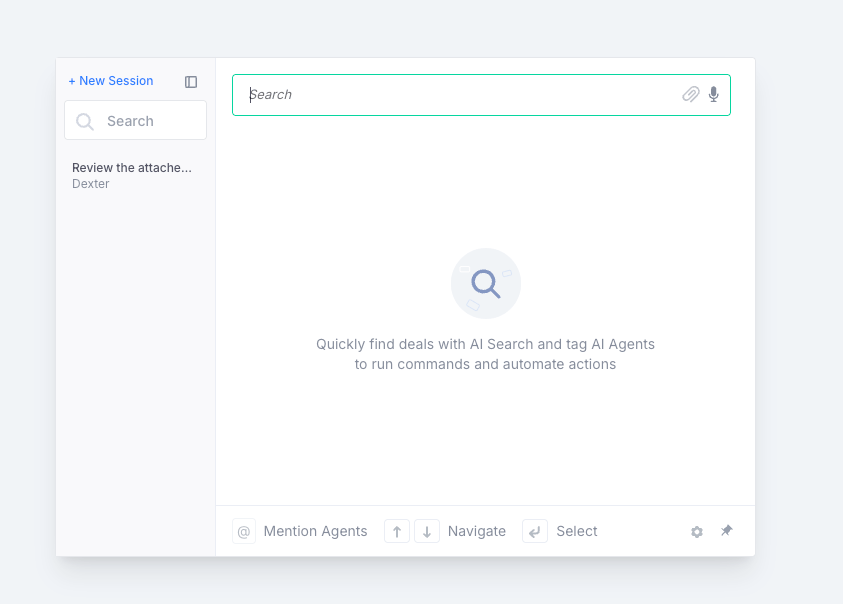
Use the left sidebar in the Command Bar to continue earlier agent work.
* Select a session to reopen it.
* Search by the first message, agent name, or application name.
* Select **New Session** to start over.
* Collapse or resize the sidebar when you need more room.
Only sessions available to your account are shown.
### Continue the conversation
After the session starts, use the chat to ask follow-up questions or provide more information.
* Press **Command/Ctrl + Enter** to send a message.
* You can also select **Send**.
* Type `/` to add another deal to a message.
* Use the paperclip or drag files onto the Command Bar to attach more documents.
Agent responses may take a moment because requests are processed in the background. Keep the session open or return to it from the session sidebar.
## Attach files
You can attach one or more files in either of these ways:
1. Select the **paperclip** and choose files from your computer.
2. Drag files anywhere onto the open Command Bar and drop them when the upload area appears.
Common supported formats include:
* PDF
* Word
* Excel
* PNG
* JPEG
* GIF
* HEIC
* P12
* PFX
* PEM
Each file can be up to **100 MB**.
You can remove an attachment before sending your request. If a file is rejected, verify its format and size.
## Resume an earlier session
Use the left sidebar in the Command Bar to continue earlier agent work.
* Select a session to reopen it.
* Search by the first message, agent name, or application name.
* Select **New Session** to start over.
* Collapse or resize the sidebar when you need more room.
Only sessions available to your account are shown.
 ## Use voice input
Select the **microphone** to dictate a deal search or agent instruction.
Review the inserted text before sending it.
Voice input depends on browser support and is not available in Arc or Microsoft Edge on Mac.
## Keep the Command Bar open
* Select the **pin** to prevent Escape or outside clicks from closing the Command Bar.
* Select **X** to close a pinned Command Bar.
* Drag the panel to move it.
* Drag its edges to resize it.
## Customize the shortcut
Select the **cog** at the bottom of the Command Bar to view and edit keyboard shortcuts.
You can change a shortcut or restore the defaults.
## Keyboard shortcuts
| Action | Mac | Windows |
| - | - | - |
| Open the Command Bar | Command + K | Ctrl + K |
| Choose an agent | `@` | `@` |
| Add deal context | `/` | `/` |
| Navigate results | Up/Down Arrow | Up/Down Arrow |
| Select a result or start a session | Enter | Enter |
| Open a deal in the same tab | Command + Enter | Ctrl + Enter |
| Open a deal in a new tab | Shift + Command + Enter | Shift + Ctrl + Enter |
| Send a chat message | Command + Enter | Ctrl + Enter |
## FAQ
Try the complete email address, phone number, deal ID, or business name. Confirm that your role has access to the deal. Recently updated deals may take a short time to appear in natural-language search, so use the regular **Deals** page when you need immediate access.
Available agents depend on your workspace configuration and permissions. Contact your workspace administrator if an expected agent is missing.
Confirm that you selected the intended agent, add the relevant deal with `/`, and describe the expected outcome clearly. Agent capabilities vary, so the selected agent may not support every action.
Confirm that the file uses a supported format and is no larger than 100 MB.
Voice input depends on browser support. It is not available in Arc or Microsoft Edge on Mac.
## Next steps
Connect external AI tools directly to your permitted Lendflow data and actions.
Search, filter, and review deals from the full Deals workspace.
## Use voice input
Select the **microphone** to dictate a deal search or agent instruction.
Review the inserted text before sending it.
Voice input depends on browser support and is not available in Arc or Microsoft Edge on Mac.
## Keep the Command Bar open
* Select the **pin** to prevent Escape or outside clicks from closing the Command Bar.
* Select **X** to close a pinned Command Bar.
* Drag the panel to move it.
* Drag its edges to resize it.
## Customize the shortcut
Select the **cog** at the bottom of the Command Bar to view and edit keyboard shortcuts.
You can change a shortcut or restore the defaults.
## Keyboard shortcuts
| Action | Mac | Windows |
| - | - | - |
| Open the Command Bar | Command + K | Ctrl + K |
| Choose an agent | `@` | `@` |
| Add deal context | `/` | `/` |
| Navigate results | Up/Down Arrow | Up/Down Arrow |
| Select a result or start a session | Enter | Enter |
| Open a deal in the same tab | Command + Enter | Ctrl + Enter |
| Open a deal in a new tab | Shift + Command + Enter | Shift + Ctrl + Enter |
| Send a chat message | Command + Enter | Ctrl + Enter |
## FAQ
Try the complete email address, phone number, deal ID, or business name. Confirm that your role has access to the deal. Recently updated deals may take a short time to appear in natural-language search, so use the regular **Deals** page when you need immediate access.
Available agents depend on your workspace configuration and permissions. Contact your workspace administrator if an expected agent is missing.
Confirm that you selected the intended agent, add the relevant deal with `/`, and describe the expected outcome clearly. Agent capabilities vary, so the selected agent may not support every action.
Confirm that the file uses a supported format and is no larger than 100 MB.
Voice input depends on browser support. It is not available in Arc or Microsoft Edge on Mac.
## Next steps
Connect external AI tools directly to your permitted Lendflow data and actions.
Search, filter, and review deals from the full Deals workspace.