

Integration Tokens
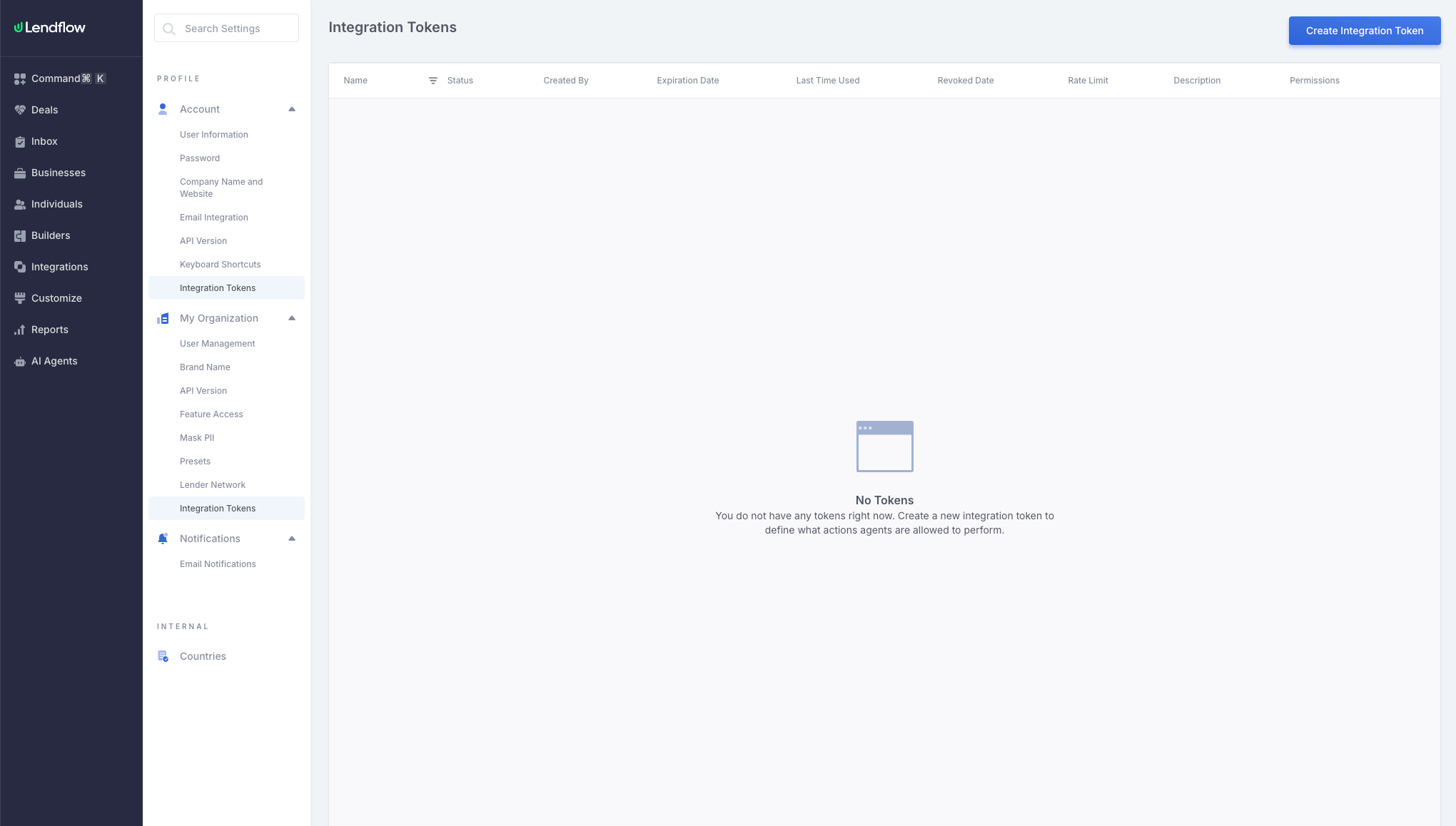
Integration Tokens allow an external tool to access Lendflow on your behalf. Each token has its own permissions, expiration, and optional rate limit, so you can control what the connected tool is allowed to do. Lendflow MCP requires an Integration Token.An Integration Token does not provide access beyond your Lendflow account. The connected tool can access only the data and actions allowed by both your user role and the permissions selected for the token.
Create an Integration Token
- Open your profile in Lendflow.
- Select Integration Tokens.
- Select Create Integration Token.
- Enter a name that identifies where the token will be used, such as
Cursor MCP. - Optionally add a description, expiration date, and rate limit.
- Under Permissions, select the permissions required by the integration.
- Select Save.
Select Permissions for MCP
When creating a token for Lendflow MCP, select the Mcp Server Tools permission group. This group includes the permissions used by the available MCP tools. You can remove permissions that the integration does not need. A tool will not be able to perform an action unless the token has the required permission and your Lendflow user role allows that action.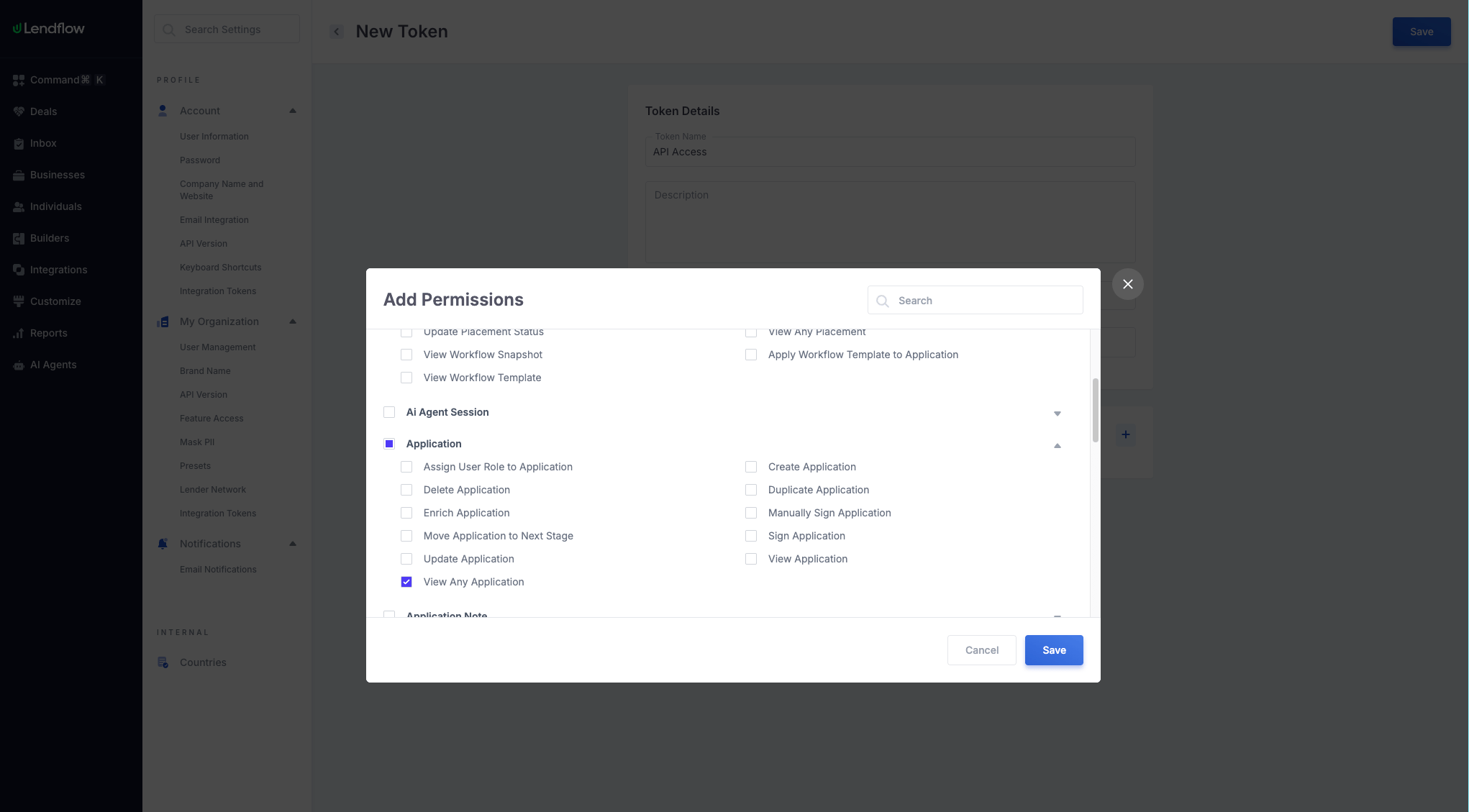
Copy and Store the Token
After the token is created, Lendflow displays its value once.- Select the copy button.
- Store the token in your MCP client’s secure configuration.
- Select Done after confirming that the token was saved.
Expiration and Rate Limits
You can set an expiration when creating or editing an active token. Shorter expiration periods reduce risk for temporary integrations. Leaving the field blank creates a token without an expiration date. The optional rate limit controls the maximum number of API requests the token can make per minute. Leave it blank to use the default limit.Manage Existing Tokens
The Integration Tokens page shows each token’s status, creator, expiration, last use, rate limit, description, and permissions.- Active tokens can authenticate connected tools.
- Expired tokens can no longer authenticate.
- Revoked tokens are permanently disabled.
API alternative: Use Create Personal Access Token, List Personal Access Tokens, Update Personal Access Token, and Revoke Personal Access Token to manage tokens programmatically. The plain-text token is returned only when it is created.
Troubleshooting
The token is not shown after creation
Token values are displayed only once. Create a replacement token and revoke the token whose value was not saved.The integration returns an authentication error
Confirm that the token was copied completely and has not expired or been revoked.An MCP action is unavailable
Confirm that the token includes the required permission. Your Lendflow role must also allow the action. Some MCP tools are available only to specific roles.Next steps
Authentication
Choose which token to use and how to send it on API requests.
Connect Lendflow MCP
Add the Integration Token to your MCP client.
Errors
Read status codes and the
message / errors body on a failed request.Getting Started with Lendflow
Authenticate, submit an application, and embed the Application Widget or Borrower Platform.