> ## Documentation Index
> Fetch the complete documentation index at: https://docs.lendflow.com/llms.txt
> Use this file to discover all available pages before exploring further.
# Online Checkout
## Online Checkout
Online Checkout guides an applicant through the remaining requirements after accepting an offer in the Borrower Platform. Your organization can collect information and documents, obtain contract or consent signatures, complete supported verification steps, and show a final confirmation without relying on manual handoffs.
## Before you begin
Online Checkout connects several parts of the Lendflow platform:
* A checkout template defines the applicant experience.
* An applicable internal-funding offer template determines which checkout template starts after acceptance.
* A **Checkout** block in the workflow's Closing stage lets your team review progress.
* The workflow's Borrower Platform configuration makes checkout available to applicants.
Confirm that the required document stipulations, contract templates, consent templates, and offer templates exist before configuring the checkout steps that use them.
## Create a checkout template
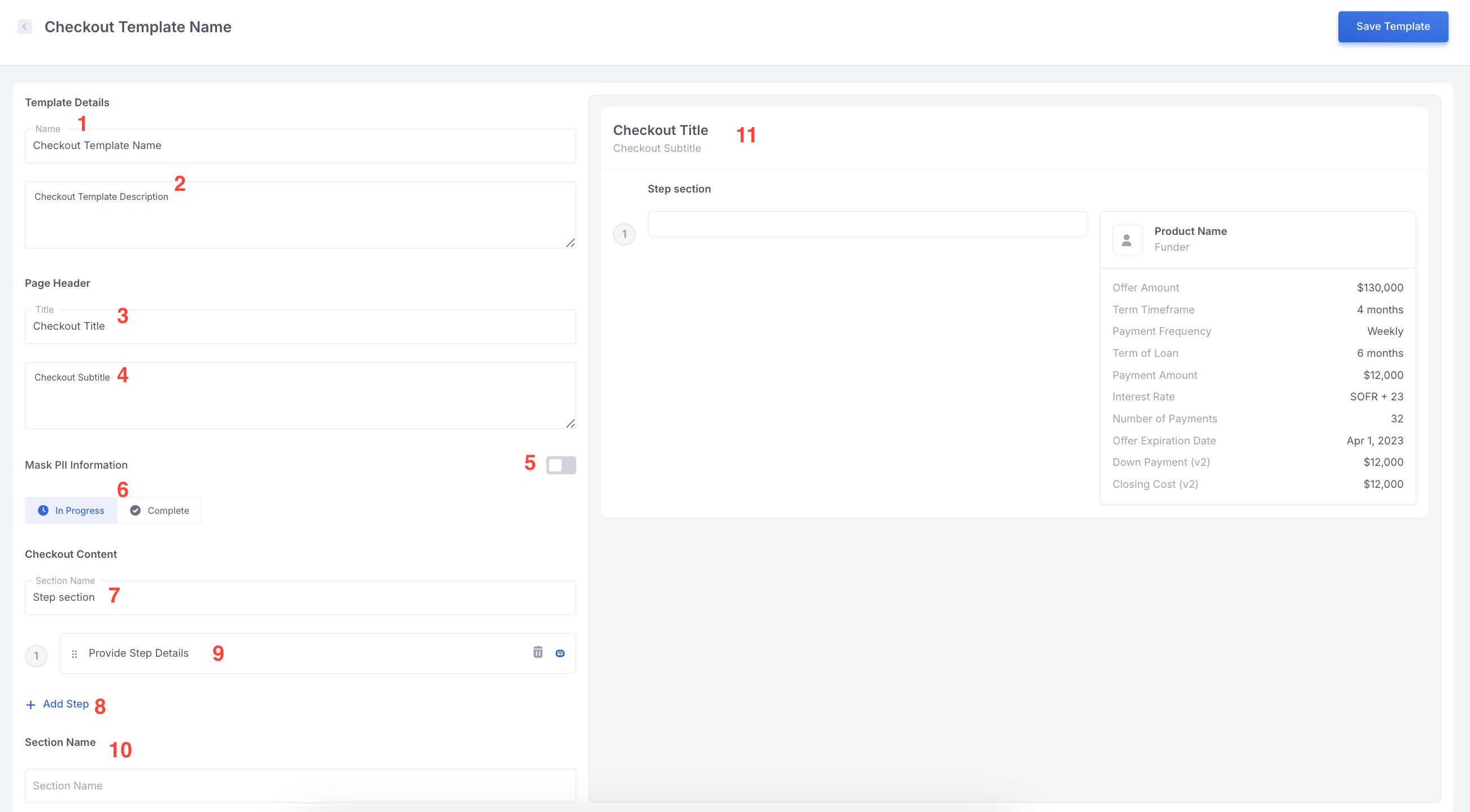
1. In the Lendflow Dashboard, open **Builders > Checkout**.
2. Select **Add New Checkout Template**.
3. Enter a title and description to identify the template in Lendflow.
4. Configure the page header title and subtitle shown to applicants.
5. Turn on **Mask PII Information** if personally identifiable information entered in Data steps should be hidden in Workflow Live by default.
6. Configure the **In Progress** experience shown while steps remain incomplete.
7. Configure the **Complete** experience, including the title and message shown after every step is complete.
8. Name the checkout content and offer-summary sections.
9. Add and configure the required steps.
10. Review the live preview, then select **Save Template**.
 ## Add checkout steps
| Step type | What the applicant does |
| - | - |
| **Documents** | Uploads documents required by the stipulations attached to the accepted offer. |
| **Contracts** | Reviews and signs a selected contract as **Any Owner**, **All Owners**, or **Primary Owner**. |
| **Consents** | Reviews and signs a selected consent as **Any Owner**, **All Owners**, or **Primary Owner**. |
| **Data** | Supplies requested personal, business, bank-account, or other application information. |
| **Service** | Completes a supported verification service configured for checkout. |
| **Custom** | Opens a configured URL using the title, description, and button text defined for the step. |
For each step, provide the applicant-facing title and description, select the step type, and complete the settings required by that type. Use the preview to confirm how the step will appear.
## Connect checkout to an offer
Checkout is available on applicable internal-funding offer templates.
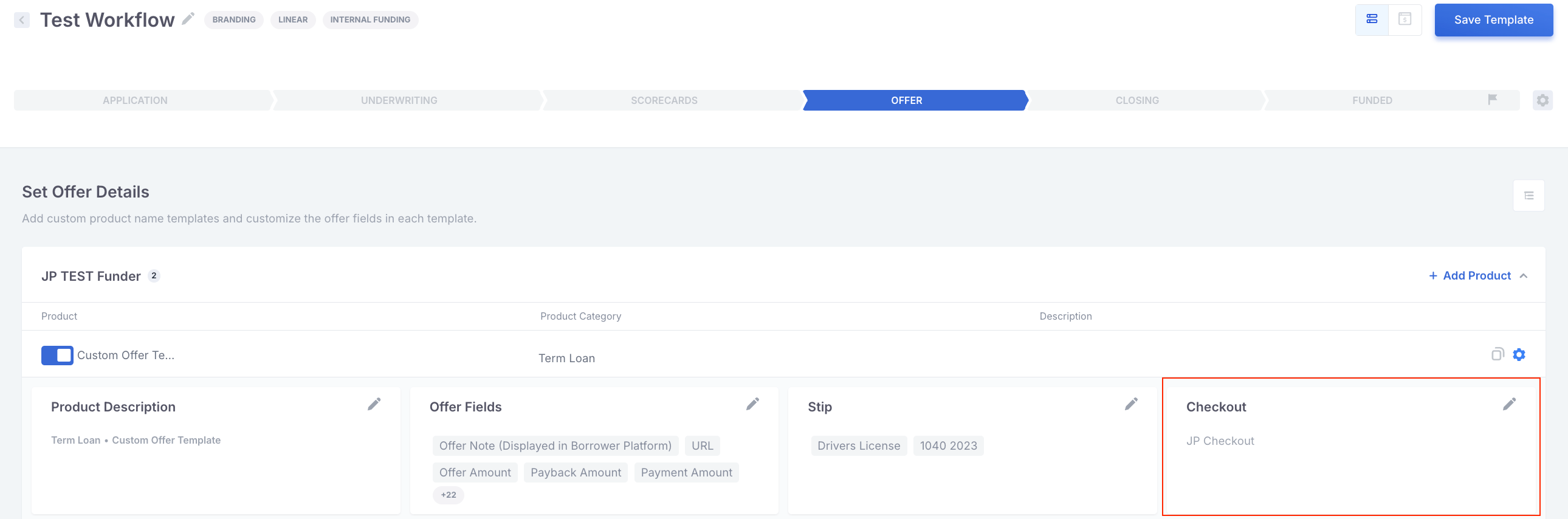
1. Open **Builders > Workflow** and edit the applicable workflow template.
2. Open the **Offer** stage.
3. Open the offer template that should start checkout.
4. In its **Checkout** section, select the checkout template.
5. Save the workflow template.
The selected checkout template is copied to the deal when an applicant accepts an offer produced from that offer template.
## Add checkout steps
| Step type | What the applicant does |
| - | - |
| **Documents** | Uploads documents required by the stipulations attached to the accepted offer. |
| **Contracts** | Reviews and signs a selected contract as **Any Owner**, **All Owners**, or **Primary Owner**. |
| **Consents** | Reviews and signs a selected consent as **Any Owner**, **All Owners**, or **Primary Owner**. |
| **Data** | Supplies requested personal, business, bank-account, or other application information. |
| **Service** | Completes a supported verification service configured for checkout. |
| **Custom** | Opens a configured URL using the title, description, and button text defined for the step. |
For each step, provide the applicant-facing title and description, select the step type, and complete the settings required by that type. Use the preview to confirm how the step will appear.
## Connect checkout to an offer
Checkout is available on applicable internal-funding offer templates.
1. Open **Builders > Workflow** and edit the applicable workflow template.
2. Open the **Offer** stage.
3. Open the offer template that should start checkout.
4. In its **Checkout** section, select the checkout template.
5. Save the workflow template.
The selected checkout template is copied to the deal when an applicant accepts an offer produced from that offer template.
 ## Configure the Closing stage
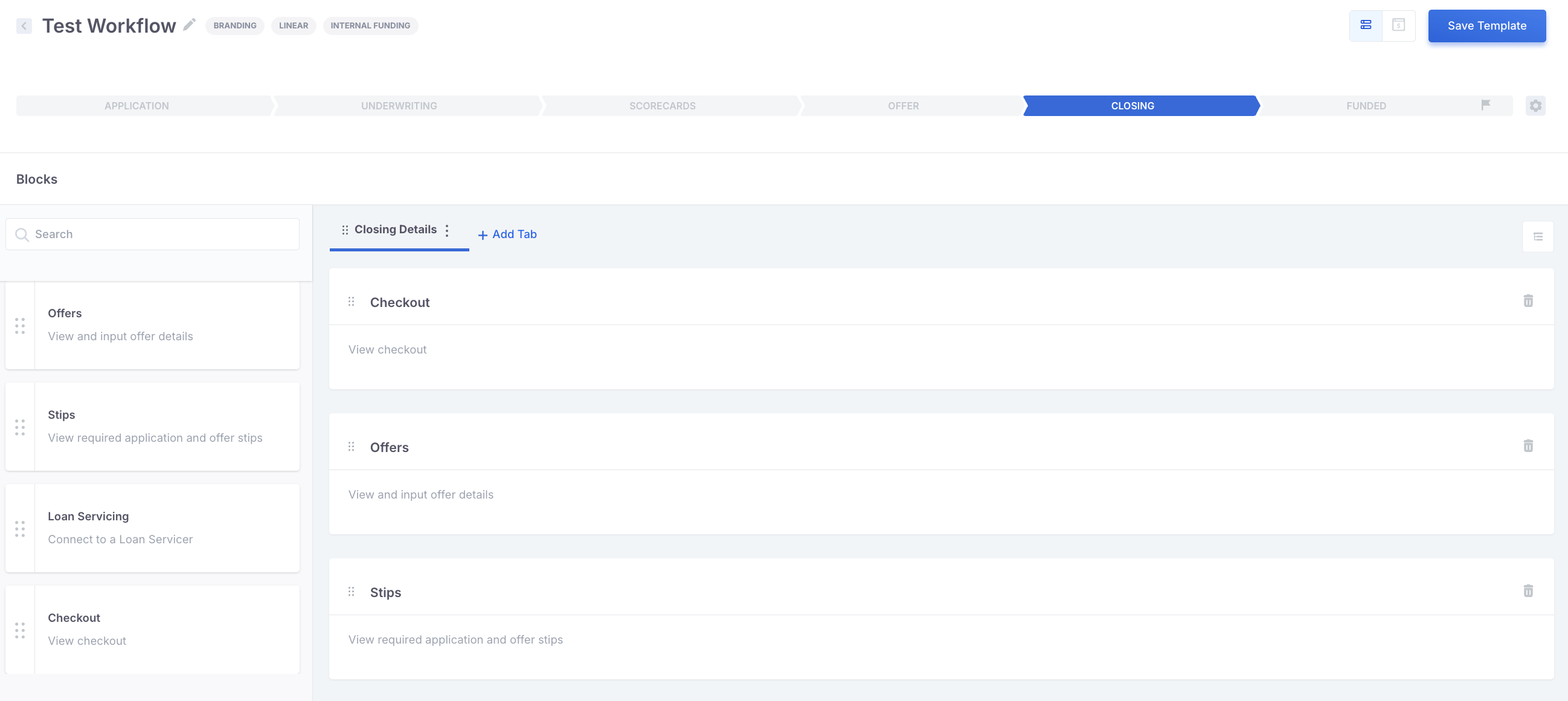
1. In the same workflow template, open the **Closing** stage.
2. Add the **Checkout** block. This block displays checkout progress in Workflow Live.
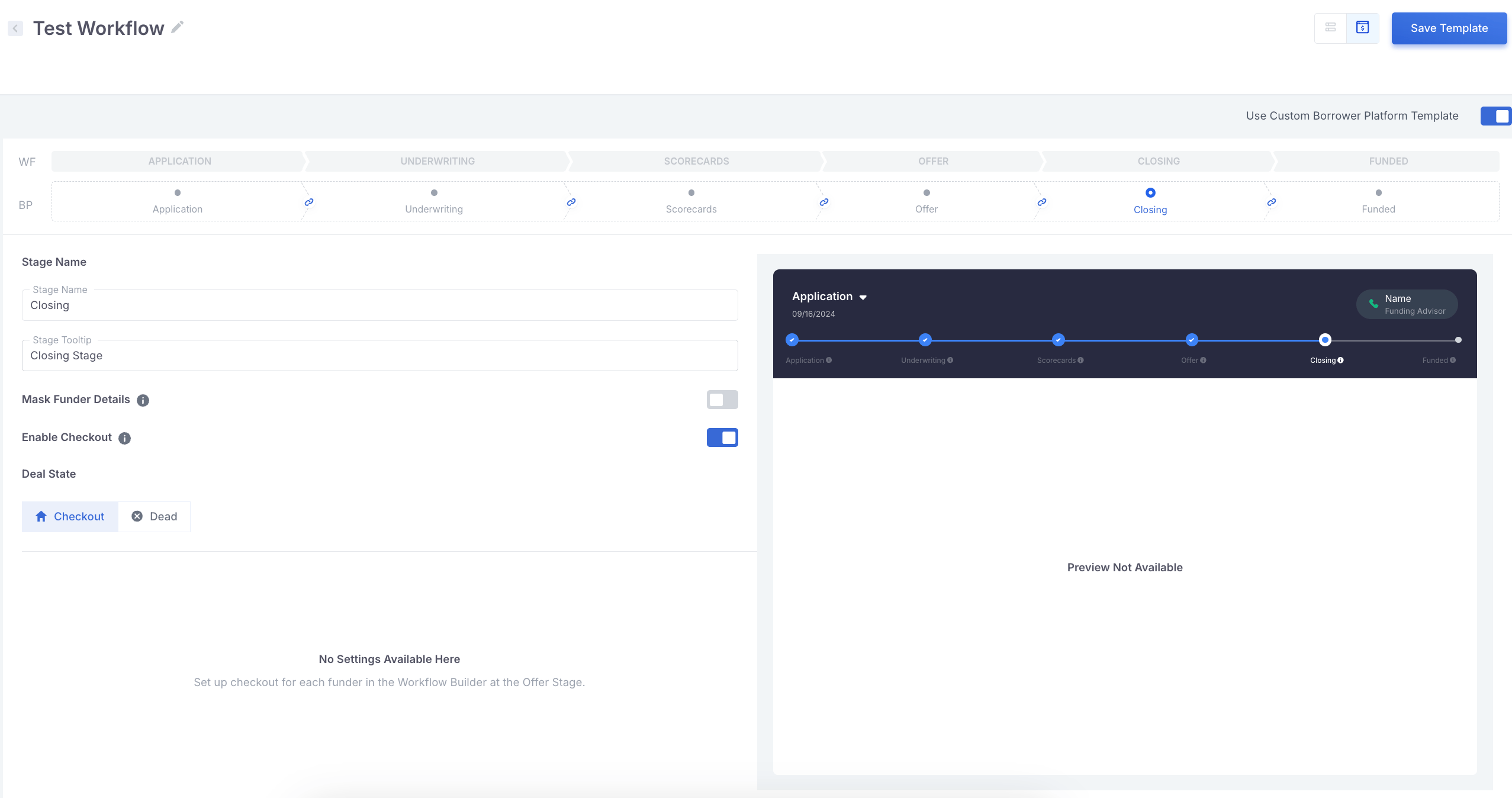
3. Open the Borrower Platform configuration for the Closing stage.
4. Confirm that the Closing stage includes an offer-stipulation or checkout state.
5. Turn on **Enable Checkout**.
6. Save the workflow template.
If **Enable Checkout** is unavailable, add the required Closing-stage Borrower Platform state first.
## Configure the Closing stage
1. In the same workflow template, open the **Closing** stage.
2. Add the **Checkout** block. This block displays checkout progress in Workflow Live.
3. Open the Borrower Platform configuration for the Closing stage.
4. Confirm that the Closing stage includes an offer-stipulation or checkout state.
5. Turn on **Enable Checkout**.
6. Save the workflow template.
If **Enable Checkout** is unavailable, add the required Closing-stage Borrower Platform state first.
 ## Review checkout progress
After checkout begins, open the deal's Closing stage and review the **Checkout Progress** block. It shows:
* Whether each step is complete or incomplete.
* Required and completed documents.
* Information supplied through Data steps.
* Contract and consent signature status.
* Masked PII, with an unmask option for authorized users.
## Review checkout progress
After checkout begins, open the deal's Closing stage and review the **Checkout Progress** block. It shows:
* Whether each step is complete or incomplete.
* Required and completed documents.
* Information supplied through Data steps.
* Contract and consent signature status.
* Masked PII, with an unmask option for authorized users.
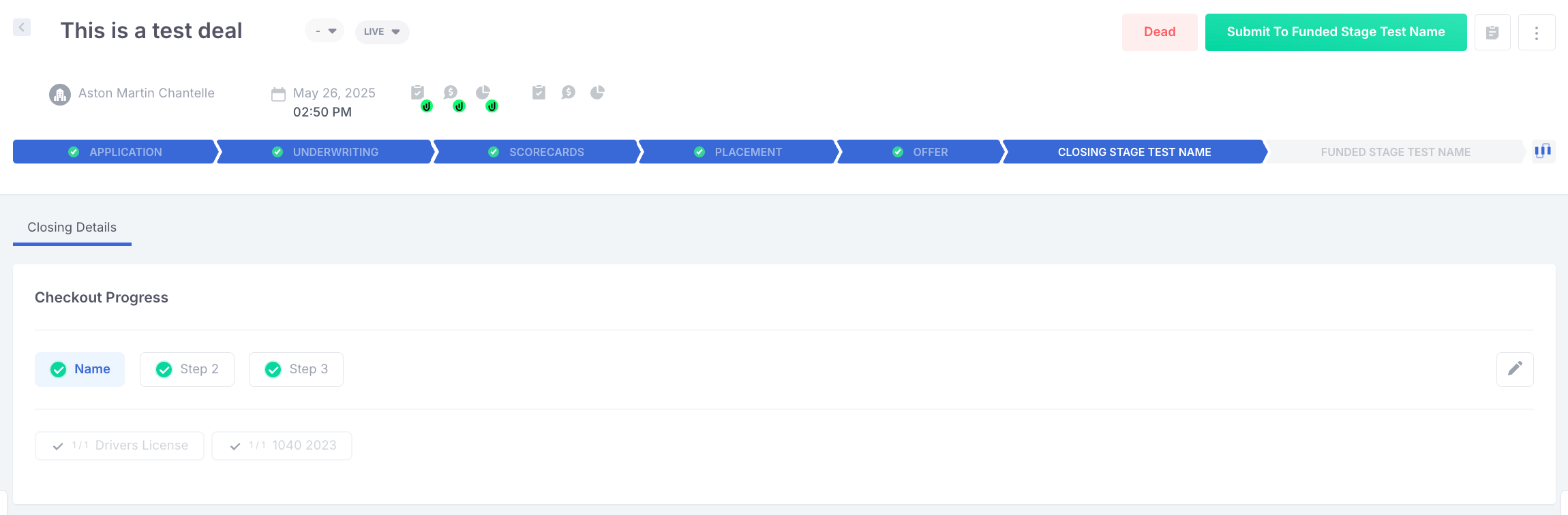 Select the pencil icon when you need to edit that deal's checkout snapshot. Snapshot changes apply to that deal without changing the original checkout template.
**API alternative:** Use [Get Offer Checkout](/api-reference/offers/get-offer-checkout) to retrieve an offer's checkout details and [Update Offer Checkout](/api-reference/offers/update-offer-checkout) to update that offer's checkout snapshot.
## Applicant experience
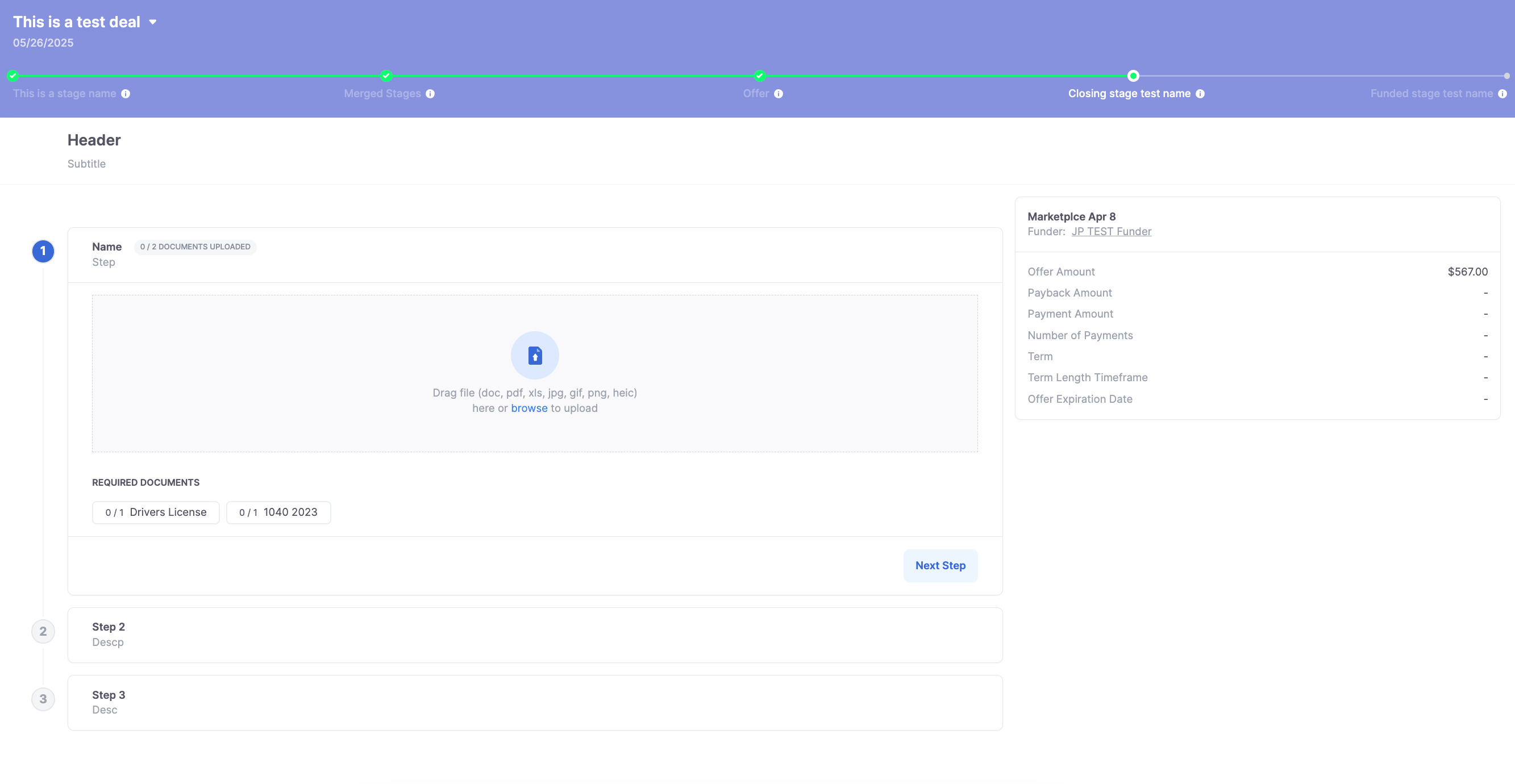
After accepting the applicable offer, the applicant enters checkout in the Borrower Platform. Applicants can complete the available steps in any order. When every required step is complete, the Borrower Platform displays the Complete title and message configured in the template.
Select the pencil icon when you need to edit that deal's checkout snapshot. Snapshot changes apply to that deal without changing the original checkout template.
**API alternative:** Use [Get Offer Checkout](/api-reference/offers/get-offer-checkout) to retrieve an offer's checkout details and [Update Offer Checkout](/api-reference/offers/update-offer-checkout) to update that offer's checkout snapshot.
## Applicant experience
After accepting the applicable offer, the applicant enters checkout in the Borrower Platform. Applicants can complete the available steps in any order. When every required step is complete, the Borrower Platform displays the Complete title and message configured in the template.
 ## Checkout webhooks
Configure [Custom Workflow Webhooks](/lendflow-external/docs/custom-workflows-webhooks#checkout-progress) to receive:
| Event | Sent when |
| - | - |
| `checkout_progress.step_complete` | An applicant completes an individual checkout step. |
| `checkout_progress.complete` | The applicant completes every required checkout step. |
## FAQ
Confirm that the checkout template is attached to the accepted offer's template, the workflow Closing stage includes a **Checkout** block, and **Enable Checkout** is turned on in the Closing-stage Borrower Platform configuration.
The Closing-stage Borrower Platform configuration must include a supported offer-stipulation or checkout state before checkout can be enabled.
No. Applicants can complete the available steps in any order.
Yes. Select the pencil icon in the deal's **Checkout Progress** block and update the checkout snapshot for that deal.
Personally identifiable information entered through Data steps is hidden by default in Workflow Live. Authorized users can use the unmask control when they need to review it.
## Next steps
Configure the applicant experience used to accept offers and complete checkout.
Configure the Offer and Closing stages that support checkout.
Configure the offer templates that can start checkout.
Receive notifications as applicants complete checkout.
## Checkout webhooks
Configure [Custom Workflow Webhooks](/lendflow-external/docs/custom-workflows-webhooks#checkout-progress) to receive:
| Event | Sent when |
| - | - |
| `checkout_progress.step_complete` | An applicant completes an individual checkout step. |
| `checkout_progress.complete` | The applicant completes every required checkout step. |
## FAQ
Confirm that the checkout template is attached to the accepted offer's template, the workflow Closing stage includes a **Checkout** block, and **Enable Checkout** is turned on in the Closing-stage Borrower Platform configuration.
The Closing-stage Borrower Platform configuration must include a supported offer-stipulation or checkout state before checkout can be enabled.
No. Applicants can complete the available steps in any order.
Yes. Select the pencil icon in the deal's **Checkout Progress** block and update the checkout snapshot for that deal.
Personally identifiable information entered through Data steps is hidden by default in Workflow Live. Authorized users can use the unmask control when they need to review it.
## Next steps
Configure the applicant experience used to accept offers and complete checkout.
Configure the Offer and Closing stages that support checkout.
Configure the offer templates that can start checkout.
Receive notifications as applicants complete checkout.