

Custom Attributes
Custom Attributes let your organization store external values or calculate new values from application data, enabled data services, and other attributes. Published Custom Attributes can be displayed on deals and used in Data Orchestration and Scorecards. Open Builders > Attributes in the Lendflow Dashboard to create and manage Custom Attributes.Choose an attribute type
Select New Attribute, then choose how the value will be produced.
For a Formula attribute, select New unless your team specifically needs the Legacy Attribute Builder. The New Attribute Builder supports the current formula editor and evaluation tools.
Create a Static attribute
- Open Builders > Attributes.
- Select New Attribute.
- Select Static.
- Enter a name and optional description.
- Create the attribute.
Create a Formula attribute
- Open Builders > Attributes.
- Select New Attribute.
- Select Formula and New.
- Enter a name and optional description.
- Create the attribute to open the formula editor.
- Build the expression, then select Save to keep it as a draft or Publish to make it available elsewhere in Lendflow.
Build a formula
Start typing in the formula editor to search the available functions and values.
You can paste a formula from Excel or Google Sheets, then replace its references and unsupported functions with values and functions available in Lendflow.
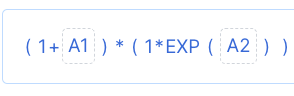
- A variable with a dotted outline is not recognized. Search for and select the correct application field, data-service attribute, or Custom Attribute.
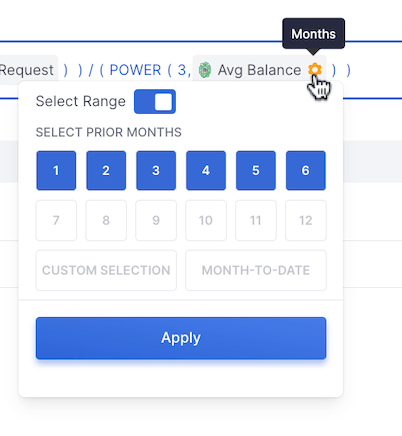
- A yellow gear icon means the selected value requires more context, such as a date range or score model. Select the icon and complete the required settings.
Evaluate a Formula attribute
Use evaluation to test a Formula attribute against information from an existing deal before publishing it.- Open the Formula attribute in the New Attribute Builder.
- Enter the deal ID or deal name in the evaluation field.
- Select Evaluate Formula.
- Review the returned value or error.
- Correct missing references, required context, or unavailable source data before publishing.
Save and publish attributes
Confirm the expression before publishing. A published attribute cannot be returned to Draft status.
Show Custom Attributes on a deal
In Builders > Workflow, open the applicable workflow template and add or configure a Custom Attributes block. Select the published attributes that users should see on deals using that workflow. The deal block displays each selected attribute and its current value. Users with the applicable permissions can enter or update Static attribute values.Use Custom Attributes in Data Orchestration
Add a Custom Attributes block to a Data Orchestration template, select the published attributes to evaluate, and define the applicable outcomes. If a Formula attribute depends on a data service, place that data-service block earlier in the orchestration. The source result must be available before Lendflow evaluates the Custom Attribute. See Data Orchestration for the complete template-building workflow.Use Custom Attributes in Scorecards
Published Custom Attributes appear as an attribute source in the Scorecard Builder. Add them to the scorecard, allocate points, and configure their ranges like other available attributes. See Creating Scorecards and Scorecard Groups for the complete process.Manage Custom Attributes via API
Use the API Reference for the request and response schemas:
Use the application ID when an endpoint evaluates, retrieves, or sets values for a specific deal.
FAQ
Why does my formula return no value?
Why does my formula return no value?
Confirm that every referenced application field, data-service result, and dependent Custom Attribute has a value on the selected deal. In Data Orchestration, run required source blocks before the Custom Attributes block.
What does the dotted outline mean?
What does the dotted outline mean?
The formula editor does not recognize that variable. Replace it with a value available from the editor’s suggestions.
What does the yellow gear icon mean?
What does the yellow gear icon mean?
The selected value requires additional context. Select the icon and complete the required settings before evaluating or publishing the formula.
Can I return a published Formula attribute to Draft?
Can I return a published Formula attribute to Draft?
No. Test and review the expression before publishing it.
Next steps
Attribute Functions Reference
Review the functions and operators supported by the formula editor.
Data Orchestration
Use published Custom Attributes in an automated decisioning template.
Creating Scorecards and Scorecard Groups
Include a published Custom Attribute in a scoring model.